Closing an Order in Base44 Using a Notify Page
The Base44 integration connects your business's application or website to your terminal's payment page (iFrame), enabling you to accept single payments or installment payments via credit cards and digital wallets.
The following Prompt creates a Notify page with a Webhook (URL address) for the business's website or application, and allows it to receive a response back with all transaction details as processed, along with additional parameters, and a response indicating whether the transaction passed or not.
Requirements for Working with the Prompt
-
The business's website or application must be connected to Tranzila's iFrame payment page via our integration. If the business has not yet completed the connection, the integration Prompt must be run first, according to the guide "Working with the Tranzila Integration for Base44 for Regular Charges or Installment Payments" or according to the guide "Working with the Tranzila Integration for Base44 for Recurring Charges".
-
The business must have a Back Order environment built for their website or application in Base44 — for example, an order management system where the status of completed purchases can be viewed ("pending" or "paid").
Creating the Notify Page
Before running the Prompt, go to the terminal's payment page settings, select Advanced Settings, and make sure Return Method is set to POST:

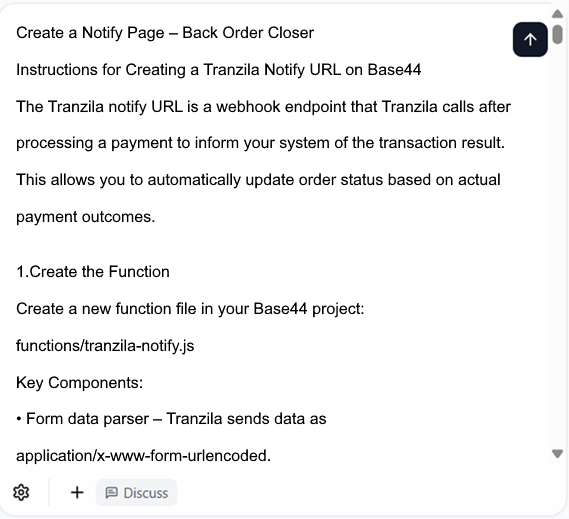
Now copy the following long Prompt in full and paste it into the application's query window:
Create a Notify Page – Back Order Closer

Instructions for Creating a Tranzila Notify URL on Base44

The Tranzila notify URL is a webhook endpoint that Tranzila calls after processing a payment to inform your system of the transaction result.
This allows you to automatically update order status based on actual payment outcomes.

1. Create the Function

Create a new function file in your Base44 project:
functions/tranzila-notify.js

Key Components:
• Form data parser – Tranzila sends data as application/x-www-form-urlencoded.
• Order matching logic – Match orders by amount + recent timestamp.
• Status update logic – Update order status to paid or failed.
• Response – Always return "OK" with status 200 to acknowledge receipt.

Example Implementation:
import { createClient } from "npm:@base44/sdk@0.1.0";

const base44 = createClient({
  appId: Deno.env.get("BASE44_APP_ID"),
});

Deno.serve(async (req) => {
  if (req.method !== "POST") {
    return new Response("Method Not Allowed", { status: 405 });
  }

  try {
    // Parse Tranzila form-data
    const formData = await req.formData();
    const notify = {};
    for (const [key, value] of formData.entries()) {
      notify[key] = value;
    }

    // Extract fields from notification
    const responseCode = notify["Response"]; // "000" or "0" = success
    const amount = parseFloat(notify["sum"] || 0);

    let order = null;

    // Match by amount + pending status + recent timestamp
    order = await base44.db
      .from("orders")
      .select("*")
      .eq("status", "pending")
      .eq("total_amount_nis", Math.round(amount))
      .gte("created_at", new Date(Date.now() - 30 * 60 * 1000).toISOString())
      .order("created_at", { ascending: false })
      .limit(1)
      .single();

    // If found, update order status
    if (order) {
      await base44.db
        .from("orders")
        .update({
          status: responseCode === "000" || responseCode === "0" ? "paid" : "failed",
          tranzila_reference: notify["TranzilaTK"] || null,
          confirmation_code: notify["ConfirmationCode"] || null,
          raw_data: JSON.stringify(notify),
        })
        .eq("id", order.id);
    }

    return new Response("OK", { status: 200 });
  } catch (error) {
    console.error("Tranzila Notify Error:", error);
    return new Response("Error", { status: 500 });
  }
});

2. Public Access

Unlike Supabase, Base44 functions are public by default.
There is no JWT requirement — as long as the function is deployed, Tranzila can call it.

3. Order Creation Strategy

Before starting the payment:
• Create an order with status = pending.
• Do not put the order ID into myid.
• Store amount and timestamp in your DB.
Matching Logic:
1. Primary → by amount and pending status.
2. Secondary → by recent timestamp (e.g. within the last 30 minutes).

3. Response Codes

Tranzila will send:
• "000" or "0" → Successful payment.
• Any other value → Failed payment.
Your function must:
• Return "OK" with status 200 (otherwise Tranzila retries).
• Return errors (404, 500) only for debugging.

6. Security Considerations

Safe:
• Function only accepts POST requests.
• Data includes Tranzila transaction tokens.
• Matching strategy prevents random orders from being updated.
Caution:
• Don't expose sensitive data in responses.
• Log notifications for debugging.
• Validate amounts match expected order totals.
• Use a time window to avoid stale matches.

7. Testing & Debugging

• Check function logs in Base44 dashboard.
• Verify successful notifications update orders.
• Watch for errors:
o No orders found → Order not in pending or amount mismatch.
o CORS → Only relevant if accessed from browser (Tranzila itself won't need CORS).

8. Complete Flow

9. User initiates payment → order created as pending.
10. Payment form is loaded in Tranzila for the user to complete the payment.
11. User completes payment in Tranzila.
12. Tranzila calls your notify endpoint.
13. Your function receives notification → finds order by amount + timestamp.
14. Order updated to paid or failed.
Click the black arrow to submit the query.
Copying the Webhook URL into Tranzila
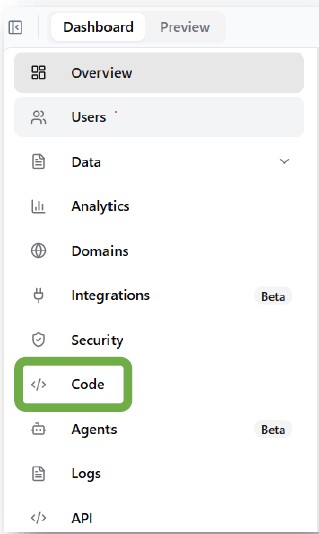
1. Now go to the Dashboard of the business's website/application and select Code:
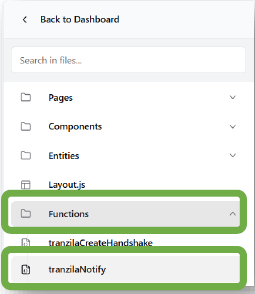
2. Select Functions and then tranzilaNotify:
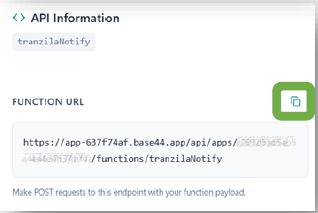
3. On the bottom right side of the screen, select API:

4. Copy the Webhook URL that Base44 created:
5. Log in to the my.tranzila system and go to Settings → Terminal → Payment Page:
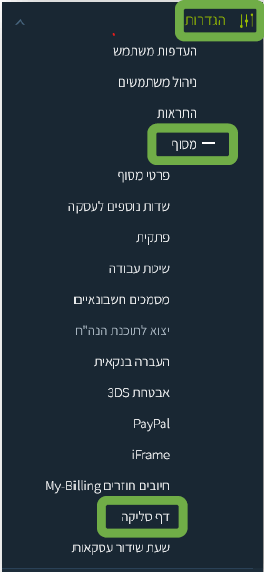
6. In the additional tab that opens, select Security, paste the URL you copied into the Notify URL field, and change the Notify Format field to QSTR. Finally, click the Save button at the top of the page:

Testing and Verification
Now perform a test transaction on the business's website or application, and verify the following two conditions:
1. A response was received by the Notify page.
To check, follow these steps:
1. Go back to the Dashboard of the business's website/application and select Code again:
2. Select Functions and then tranzilaNotify:
3. On the bottom right side of the screen, select Logs:

You can now see whether a response was received or not.
Example of a response that was returned:
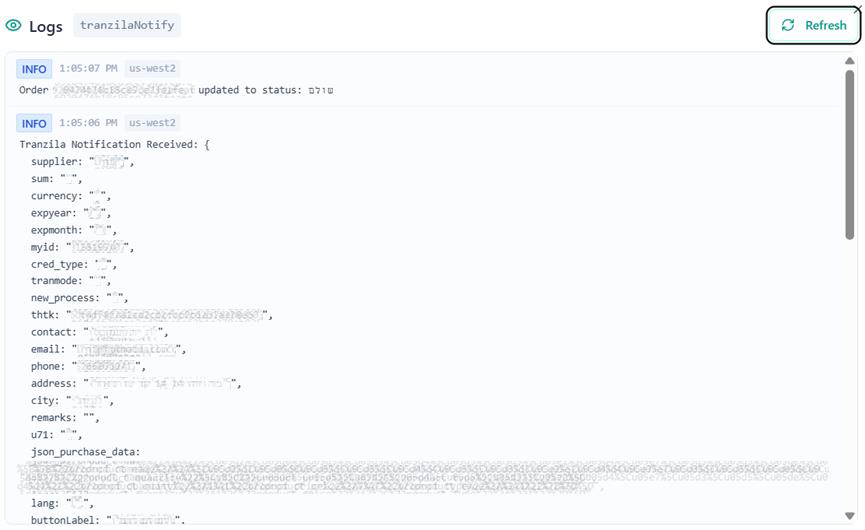
2. The test transaction appears in the business's Back Order (order management system) with the status "paid".
Example of a closed order:
