Recurring Charges with the Tranzila Integration for Base44
Working with the Tranzila Integration for Base44
For Recurring Charges
The Base44 integration connects your business's application or website to your terminal's payment page (iFrame), enabling you to accept payments for recurring charges (subscriptions).
What Does the Integration Support?
- Recurring charges (available as an add-on for Tranzila terminals, additional fee applies).
- Payment via credit card.
- Product details on accounting documents (available as an add-on for Tranzila terminals).
Note: The integration does not set up a Notify page. A Notify page is used to receive a response with transaction details as processed, including whether it passed or failed, and allows updating the order status (paid/unpaid) in the application/website Back Order. To set up a Notify page, refer to the document "Closing an Order in Base44 Using a Notify Page".
Additionally, refunds cannot be processed directly from the application/website through the integration. Refunds must be performed through the terminal's my.tranzila system.
Furthermore, recurring charges cannot be made via digital wallets!
Requirements for Working with the Integration
- First of all – an active Tranzila terminal is required, including the terminal name and PW password.
- A Builder account or higher on Base44, which allows building with a Backend function.
- HandShake enabled on the payment page.
- New Process enabled on the payment page.
- Recurring charges (subscriptions) service.
Connecting the Application/Website to the iFrame Payment Page
Before starting, make sure the application's Backend service is active. To activate the Backend service, follow these steps:
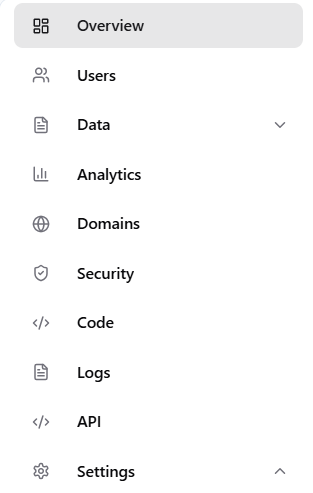
1. Inside the Base44 application, click on Dashboard in the middle of the top toolbar:

2. Click on Settings:
3. Click on App Settings:
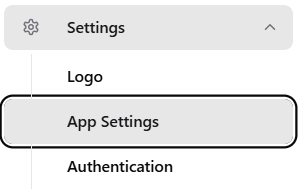
4. Click Activate to activate the Backend service. If the button says "Activated" and is grayed out as shown in the image – the service is already active:

Connecting the Integration
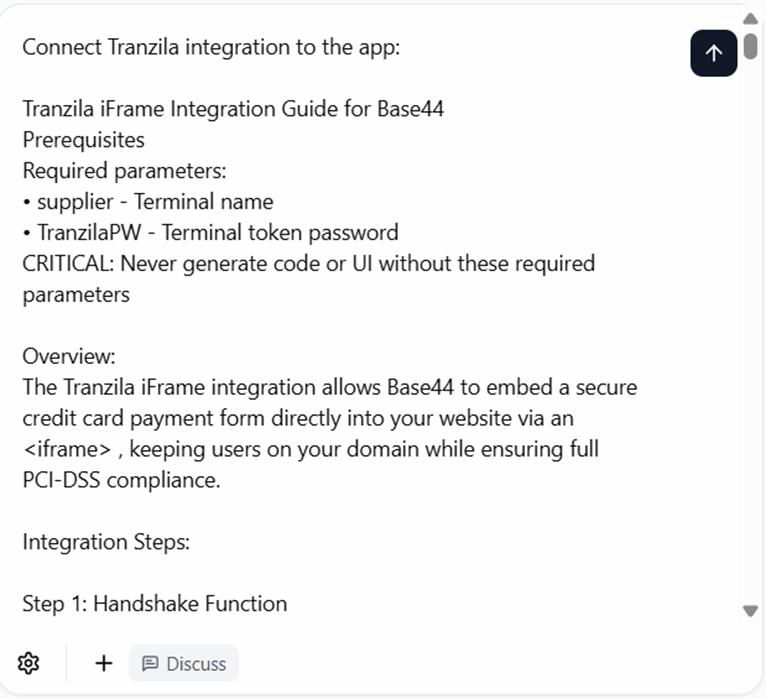
Now copy the following long Prompt in full and paste it into the application's query window:
Connect Tranzila integration:

Tranzila iFrame Recurring Payments Integration Guide for Base44

Prerequisites
Required parameters:
• supplier - Terminal name
• TranzilaPW - Terminal token password
CRITICAL: Never generate code or UI without these required parameters

Overview – Tranzila Recurring Payments:
The Tranzila recurring payments integration allows Base44 to embed secure credit card recurring payments (subscriptions or auto-pay) directly on your website through an <iframe>. Customers remain on your domain throughout the checkout process, while the integration ensures full PCI-DSS compliance for maximum security. Customers can be billed automatically on a predefined schedule—monthly, quarterly, or annually—based on terms you configure or agree upon. This makes it simple to manage memberships, subscriptions, and ongoing services while ensuring a seamless and secure payment.

Integration Steps:

Step 1: Handshake Function
The Tranzila handshake is a security measure. Before initiating a payment through the Tranzila iFrame, your application needs to request a unique transaction identifier (thtk) from Tranzila's server. This thtk links the payment amount and details to a specific transaction, preventing fraud and ensuring PCI-DSS compliance by never exposing sensitive details on the client-side.

Prerequisites: Before you begin, ensure you have the following secrets configured in your Base44 app settings:
• supplier: Your Tranzila terminal name.
• TranzilaPW: Your Tranzila terminal token password.

1. Create the Backend Function File:
• In your Base44 project, navigate to the functions folder.
• Create a new JavaScript file (e.g., tranzilaCreateHandshake.js). The name you choose here will be used when you import and call the function from your frontend.
2. Implement the Function Logic:
Open the newly created file (tranzilaCreateHandshake.js) and add the following code structure. This is a Deno Deploy handler that processes incoming requests.

import { createClient } from 'npm:@base44/sdk@0.1.0';

// Initialize the Base44 SDK client
const base44 = createClient({
    appId: Deno.env.get('BASE44_APP_ID'),
});

// Define the Deno service handler
Deno.serve(async (req) => {
    try {
        // A. Authentication and User Context (Highly Recommended for Secure Operations)
        // Extract the Authorization token from the request headers
        const authHeader = req.headers.get('Authorization');
        if (!authHeader) {
            return new Response('Unauthorized', { status: 401 });
        }
        const token = authHeader.split(' ')[1]; // Get the actual token value
        base44.auth.setToken(token); // Set the token for the SDK client

        // Optionally, fetch user details to ensure a valid authenticated user
        const user = await base44.auth.me();
        if (!user) {
            return new Response('Unauthorized', { status: 401 });
        }

        // B. Extract Input Parameters from Request Body
        // The frontend will send the payment sum in the request body
        const { sum } = await req.json();

        if (!sum || sum <= 0) {
            return new Response(JSON.stringify({ error: 'Invalid sum' }), {
                status: 400,
                headers: { 'Content-Type': 'application/json' }
            });
        }

        // C. Access Secrets (Terminal Name and Password)
        // Retrieve your Tranzila secrets from environment variables (set in Base44 dashboard)
        const supplier = Deno.env.get('supplier');
        const TranzilaPW = Deno.env.get('TranzilaPW');

        if (!supplier || !TranzilaPW) {
            // This should ideally be caught during development, not in production
            console.error("Missing Tranzila credentials in environment variables.");
            return new Response(JSON.stringify({ error: 'Server configuration error: Missing Tranzila credentials' }), {
                status: 500,
                headers: { 'Content-Type': 'application/json' }
            });
        }

        // D. Construct the Tranzila Handshake URL
        const handshakeUrl = `https://api.tranzila.com/v1/handshake/create?supplier=${supplier}&sum=${sum}&TranzilaPW=${TranzilaPW}`;

        // E. Make the API Call to Tranzila
        const response = await fetch(handshakeUrl);
        const data = await response.text(); // Tranzila returns a plain text response like 'thtk=...'

        // F. Extract the 'thtk' (Transaction Handshake Token) - CORRECTED LOGIC
        // The response typically looks like "thtk=your_unique_token_string"
        const thtkPrefix = "thtk=";
        let thtk = data.trim();
        if (thtk.startsWith(thtkPrefix)) {
            thtk = thtk.substring(thtkPrefix.length); // Extract only the token value
        }

        // G. Return the Response to the Frontend
        return new Response(JSON.stringify({
            thtk, // Now 'thtk' will only contain the token string, e.g., "t9ad2b3ab5b8c7617498e57a63af00c81"
            supplier,
            sum
        }), {
            status: 200,
            headers: { 'Content-Type': 'application/json' }
        });

    } catch (error) {
        // H. Basic Error Handling
        // ... keep existing code (error handling) ...
    }
});

3. Using the Function in Your Frontend (e.g., Checkout.js): Once your backend function is deployed (this happens automatically when you save the file), you can call it from any React component or page in your Base44 application.
import { tranzilaCreateHandshake } from "@/functions/tranzilaCreateHandshake"; // Adjust path if needed

// ... inside your React component (e.g., CheckoutPage)

const initializePayment = async () => {
    // ... ensure all customer details are valid ...

    try {
        const totalAmount = getTotalPrice(); // Get total sum from cart
        const { data } = await tranzilaCreateHandshake({ sum: totalAmount });

        // 'data' will contain { thtk: "...", supplier: "...", sum: ... }
        // You can then use this data to dynamically generate and submit the Tranzila iFrame form.
        setHandshakeData(data); // Store the handshake data in component state

        // After setting state, trigger the iFrame form submission (e.g., via a ref or direct DOM manipulation)
        setTimeout(() => {
          const form = document.getElementById('tranzila-form');
          if (form) {
            form.submit();
          }
        }, 100);

    } catch (error) {
        console.error('Failed to initialize payment:', error);
        // Display an error message to the user
    }
};

Key Considerations for this Function:
Security:
• Secrets: Never expose supplier or TranzilaPW in your frontend code. Always retrieve them securely using Deno.env.get() in your backend function.
• Authentication: The base44.auth part ensures that only authenticated users of your app can call this function, adding a layer of security.
• Amount Validation: While the handshake performs some validation, always validate the sum server-side (within your backend function) before making external API calls to prevent manipulation.
• Response Handling: Tranzila's handshake endpoint returns a plain text string. The function parses this to extract the thtk and returns it as a JSON object to your frontend, making it easier to work with.
• Error Handling: The try...catch block in the backend function is essential for catching any issues (network errors, invalid parameters, Tranzila API errors) and returning a meaningful error response to your frontend.
• Function Naming: Use camelCase for function file names (e.g., tranzilaCreateHandshake.js). This name will be automatically converted to tranzilaCreateHandshake when importing into your frontend.

Step 2: Recurring Payments iFrame Configuration

Base URL: https://direct.tranzila.com/[terminalname]/iframenew.php

Method: POST

Core Parameters for Recurring Transactions:

Parameter – sum
Values – Positive decimal
Description – Transaction amount

Parameter – cred_type
Values – 1
Description – Payment type

Parameter – currency
Values – 1 = NIS, 2 = USD, 978 = EUR, 826 = GBP
Description – Currency type

Parameter – tranmode
Values – A = Standard, V = Verification (J5), K = Create token, N =Verification (J2)
Description – Transaction type

Parameter – new_process
Values – 1
Description – Enable handshake verification

Parameter – thtk
Values – String from handshake
Description – Transaction identifier

Parameter – recur_payments
Values – Integer
Description – The number of recurring charges that will be made - If this field is not passed, the recurring charge will not be limited and will run every month/quarter/year until manually turned off from the terminal.

Parameter – recur_start_date
Values – yyyy-mm-dd (recur_start_date=2023-08-28)
Description – The start date of the recurring charges

Parameter – recur_transaction=4_approved
Values – 4
Description – monthly payment Not Customer Choice

Parameter – recur_transaction=5_approved
Values – 5
Description – quarterly payment Not Customer Choice

Parameter – recur_transaction=7_approved
Values – 7
Description – Yearly payment Not Customer Choice

Examples: Let's assume we want the user to pay 100 NIS for joining our service and 20 NIS each month afterwards for 12 months:
sum = 100
recur_sum=20
recur_transaction=4
recur_payments=12
if we don't want to allow the user to pay the whole amount we can pass:
recur_transaction=4_approved

Customer Information Fields:

Parameter – company
Description – Company name

Parameter – contact
Description – Contact name

Parameter – email
Description – Email address

Parameter – address
Description – Street address

Parameter – phone
Description – Phone number

Parameter – city
Description – City

Parameter – pdesc
Description – Product description for invoice

Parameter – remarks
Description – Additional remarks

Display Customization:

Parameter – trBgColor
Values – Hexadecimal
Description – Background color

Parameter – trTextColor
Values – Hexadecimal
Description – Text color

Parameter – trButtonColor
Values – Hexadecimal
Description – Payment button color

Parameter – buttonLabel
Values – String
Description – Payment button text

Parameter – hidesum
Values – 1
Description – Hide payment sum (only with VK/K/NK tranmode)

Parameter – nologo
Values – 1
Description – Remove Tranzila logo

Parameter – hide_cc
Values – 1
Description – Hide credit card option

Parameter – accessibility
Values – 2
Description – Show accessibility button

Language Support:

Parameter – lang
Values – il
Description – Hebrew

Parameter – lang
Values – us
Description – English

Parameter – lang
Values – ar
Description – Arabic

Parameter – lang
Values – ru
Description – Russian

Parameter – lang
Values – es
Description – Spanish

Parameter – lang
Values – de
Description – German

Parameter – lang
Values – fr
Description – French

Parameter – lang
Values – jp
Description – Japanese

Important! Product Details for Invoice:

To include itemized products on the invoice:
1. Enable product details: Add u71=1 parameter
2. Create product array:

json
[
{
"product_name": "Product 1",
"product_quantity": 2,
"product_price": 50.00
},
{
"product_name": "Product 2",
"product_quantity": 1,
"product_price": 100.00
}
]

3. Stringify without spaces:

json
[{"product_name":"Product 1","product_quantity":2,"product_price":50.00},{"product_name":"Product 2","product_quantity":1,"product_price":100.00}]

4. URL encode (use rawurlencode, not urlencode):
• Spaces must be encoded as 20%, not +
• Send as json_purchase_data parameter
Invoice Limitations:
• Maximum 6 products with logo and signature
• Maximum 10 products without lower logo/signature
• Product description: max 118 characters
• Total must equal sum of (quantity × price) for all products

Implementation Examples:

Recurring Payments Form:

<main class="min-h750">
  <div class="container">
    <section id="main-content">
      <div class="row text-center mt-5">
        <div class="col">
          <h1 class="display-3 text-primary">Pay Amount</h1>
        </div>
      </div>
      <div class="row mt-5">
        <div class="col-md-6">
          <form action="https://direct.tranzila.com/tranzila1/iframenew.php" target="tranzila" method="POST" novalidate="novalidate" autocomplete="off">
            <div class="form-group">
              <input name="sum" type="hidden" value="100" type="number" id="sum" class="form-control" readonly />
              <span class="text-danger"></span>
            </div>
            <input type="hidden" name="buttonLabel" value="Pay" />
            <input type="hidden" name="lang" value="il" />
            <input type="hidden" name="recur_sum" value="20" />
            <input type="hidden" name="recur_transaction" value="4" />
            <input type="hidden" name="recur_payments" value="12" />
            <input type="hidden" name="currency" value="1" />
            <button type="submit" name="submit" class="btn btn-primary mt-3" value="pay">pay</button>
          </form>
        </div>
      </div>
      <div class="row mt-5">
        <div class="col-md-6">
          <div class="" style="width: 800px; height: 800px;">
            <iframe id="tranzila-frame" allowpaymentrequest='true' name="tranzila" src="" style="width: 100%; height: 100%;"></iframe>
          </div>
        </div>
      </div>
    </section>
  </div>
</main>

Security Best Practices:

1. Always use handshake for transaction verification
2. Never expose TranzilaPW in client-side code
3. Validate amounts server-side before processing
4. Use HTTPS for all communications
5. Implement proper error handling for failed transactions
6. Store transaction references for reconciliation
7. Use only tranzila iframe parameters to create any type of payment form.

Error Handling:

Common error codes and solutions:

Error – 912791
Description – Amount mismatch
Solution – Ensure handshake amount matches form amount

Error – Invalid terminal
Description – Wrong supplier name
Solution – Verify terminal name with Tranzila

Error – Authentication failed
Description – Wrong password
Solution – Check TranzilaPW parameter

Checklist Before Going Live:

• Obtained production supplier and TranzilaPW
• Implemented handshake mechanism
• Configured all required form parameters
• Tested payment flow end-to-end
• Implemented error handling
• Customized display (colors, language, button text)
• Tested installments (if applicable)
• Verified invoice generation (if using products)
• Secured all sensitive parameters server-side
• Implemented transaction logging
Click the black arrow to submit the query.
Possible Errors and Solutions
Possible error: Instead of an iFrame payment page, a language not supported message is received.
Explanation: The value of the lang parameter being passed is invalid. Valid values: Hebrew il, English us, Arabic ar (all possible values are listed in the developer guide).
Solution: Write the following Prompt line with the desired language value, for example:
Change lang parameter value to il
Possible error: When attempting to navigate to the iFrame payment page, error 401 or 500 is received.
Explanation: These errors indicate that the HandShake process is not working correctly.
Solution: Copy, paste, and run the following Prompt:
Fix Tranzila handshake function, here is the instruction:

Step 1: Handshake Function
The Tranzila handshake is a security measure. Before initiating a payment through the Tranzila iFrame, your application needs to request a unique transaction identifier (thtk) from Tranzila's server. This thtk links the payment amount and details to a specific transaction, preventing fraud and ensuring PCI-DSS compliance by never exposing sensitive details on the client-side.

Prerequisites: Before you begin, ensure you have the following secrets configured in your Base44 app settings:
• supplier: Your Tranzila terminal name.
• TranzilaPW: Your Tranzila terminal token password.

1. Create the Backend Function File:
• In your Base44 project, navigate to the functions folder.
• Create a new JavaScript file (e.g., tranzilaCreateHandshake.js). The name you choose here will be used when you import and call the function from your frontend.
2. Implement the Function Logic:
Open the newly created file (tranzilaCreateHandshake.js) and add the following code structure. This is a Deno Deploy handler that processes incoming requests.

import { createClient } from 'npm:@base44/sdk@0.1.0';

// Initialize the Base44 SDK client
const base44 = createClient({
    appId: Deno.env.get('BASE44_APP_ID'),
});

// Define the Deno service handler
Deno.serve(async (req) => {
    try {
        // A. Authentication and User Context (Highly Recommended for Secure Operations)
        // Extract the Authorization token from the request headers
        const authHeader = req.headers.get('Authorization');
        if (!authHeader) {
            return new Response('Unauthorized', { status: 401 });
        }
        const token = authHeader.split(' ')[1]; // Get the actual token value
        base44.auth.setToken(token); // Set the token for the SDK client

        // Optionally, fetch user details to ensure a valid authenticated user
        const user = await base44.auth.me();
        if (!user) {
            return new Response('Unauthorized', { status: 401 });
        }

        // B. Extract Input Parameters from Request Body
        // The frontend will send the payment sum in the request body
        const { sum } = await req.json();

        if (!sum || sum <= 0) {
            return new Response(JSON.stringify({ error: 'Invalid sum' }), {
                status: 400,
                headers: { 'Content-Type': 'application/json' }
            });
        }

        // C. Access Secrets (Terminal Name and Password)
        // Retrieve your Tranzila secrets from environment variables (set in Base44 dashboard)
        const supplier = Deno.env.get('supplier');
        const TranzilaPW = Deno.env.get('TranzilaPW');

        if (!supplier || !TranzilaPW) {
            // This should ideally be caught during development, not in production
            console.error("Missing Tranzila credentials in environment variables.");
            return new Response(JSON.stringify({ error: 'Server configuration error: Missing Tranzila credentials' }), {
                status: 500,
                headers: { 'Content-Type': 'application/json' }
            });
        }

        // D. Construct the Tranzila Handshake URL
        const handshakeUrl = `https://api.tranzila.com/v1/handshake/create?supplier=${supplier}&sum=${sum}&TranzilaPW=${TranzilaPW}`;

        // E. Make the API Call to Tranzila
        const response = await fetch(handshakeUrl);
        const data = await response.text(); // Tranzila returns a plain text response like 'thtk=...'

        // F. Extract the 'thtk' (Transaction Handshake Token) - CORRECTED LOGIC
        // The response typically looks like "thtk=your_unique_token_string"
        const thtkPrefix = "thtk=";
        let thtk = data.trim();
        if (thtk.startsWith(thtkPrefix)) {
            thtk = thtk.substring(thtkPrefix.length); // Extract only the token value
        }

        // G. Return the Response to the Frontend
        return new Response(JSON.stringify({
            thtk, // Now 'thtk' will only contain the token string, e.g., "t9ad2b3ab5b8c7617498e57a63af00c81"
            supplier,
            sum
        }), {
            status: 200,
            headers: { 'Content-Type': 'application/json' }
        });

    } catch (error) {
        // H. Basic Error Handling
        // ... keep existing code (error handling) ...
    }
});

3. Using the Function in Your Frontend (e.g., Checkout.js): Once your backend function is deployed (this happens automatically when you save the file), you can call it from any React component or page in your Base44 application.
import { tranzilaCreateHandshake } from "@/functions/tranzilaCreateHandshake"; // Adjust path if needed

// ... inside your React component (e.g., CheckoutPage)

const initializePayment = async () => {
    // ... ensure all customer details are valid ...

    try {
        const totalAmount = getTotalPrice(); // Get total sum from cart
        const { data } = await tranzilaCreateHandshake({ sum: totalAmount });

        // 'data' will contain { thtk: "...", supplier: "...", sum: ... }
        // You can then use this data to dynamically generate and submit the Tranzila iFrame form.
        setHandshakeData(data); // Store the handshake data in component state

        // After setting state, trigger the iFrame form submission (e.g., via a ref or direct DOM manipulation)
        setTimeout(() => {
          const form = document.getElementById('tranzila-form');
          if (form) {
            form.submit();
          }
        }, 100);

    } catch (error) {
        console.error('Failed to initialize payment:', error);
        // Display an error message to the user
    }
};

Key Considerations for this Function:
Security:
• Secrets: Never expose supplier or TranzilaPW in your frontend code. Always retrieve them securely using Deno.env.get() in your backend function.
• Authentication: The base44.auth part ensures that only authenticated users of your app can call this function, adding a layer of security.
• Amount Validation: While the handshake performs some validation, always validate the sum server-side (within your backend function) before making external API calls to prevent manipulation.
• Response Handling: Tranzila's handshake endpoint returns a plain text string. The function parses this to extract the thtk and returns it as a JSON object to your frontend, making it easier to work with.
• Error Handling: The try...catch block in the backend function is essential for catching any issues (network errors, invalid parameters, Tranzila API errors) and returning a meaningful error response to your frontend.
• Function Naming: Use camelCase for function file names (e.g., tranzilaCreateHandshake.js). This name will be automatically converted to tranzilaCreateHandshake when importing into your frontend.