PayPal iframe Integration
Overview
Accept PayPal on the Tranzila payment page (iframe) next to card payments. The terminal connects to PayPal through the PayPal REST API, using two keys from your PayPal Business account: Client ID and Secret.
The setup has two parts:
- Save the PayPal keys in My Tranzila. See Connect your terminal to PayPal.
- Send
ppnewwin=2to the iframe, so the PayPal option appears on the payment page. See Show PayPal on the payment page.
No other development work is required on the terminal. The connection is active as soon as you save the keys.
!> PayPal ends support for the Classic interface at the end of 2026. Move your terminal to REST before then. See Moving from Classic to REST.
Building your own checkout with the Tranzila API? This page covers the payment page (iframe). For the API flow, see PayPal Integration – Direct API (TRAPI).
What's new with REST
- Connection with REST API keys: Client ID and Secret.
- Webhook ID returned by PayPal and shown automatically in the settings screen.
- New transaction types: Verify, Force, Cancel and Refund.
- Linked transactions shown in the transaction details screen.
- Two separate environments: Sandbox (testing) and Live (production).
How a payment works
- The payment page shows the PayPal option.
- The buyer selects PayPal, logs in to PayPal and approves the payment.
- PayPal returns the buyer to your site. Tranzila records the transaction and returns the transaction data, including the PayPal parameters, to your success or failure URL.
Refunds and chargebacks made at PayPal are recorded in Tranzila automatically, through a PayPal webhook that Tranzila registers for you. You do not need to set up anything at PayPal for this.
Before you start
- A terminal that works with the Tranzila payment page (iframe).
- A PayPal Business account. A personal PayPal account cannot work in the Live environment.
- Access to the PayPal Developer Dashboard of that account, to create the REST app.
- For testing: a Sandbox app and a Sandbox buyer account (Testing Tools → Sandbox Accounts in the PayPal Developer Dashboard). Without a Sandbox buyer account you cannot complete a test payment.
Connect your terminal to PayPal
Step 1: Choose the environment
In My Tranzila, go to Settings → Terminal → PayPal (הגדרות ← מסוף ← PayPal). The screen title is PayPal Settings.
- Live is the default. Payments are real.
- Sandbox is for testing. All transactions are simulated: buyers are not charged and no money is received. Switching to Sandbox opens a confirmation window. The change takes effect only after you save.
- Only one environment is active at a time.
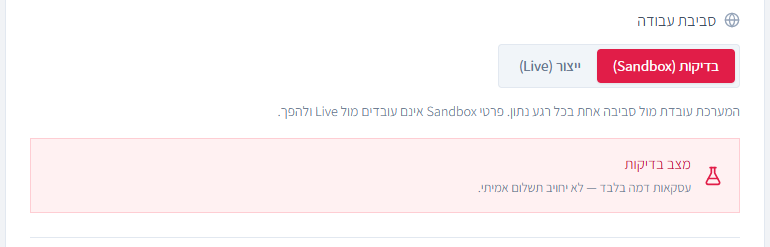
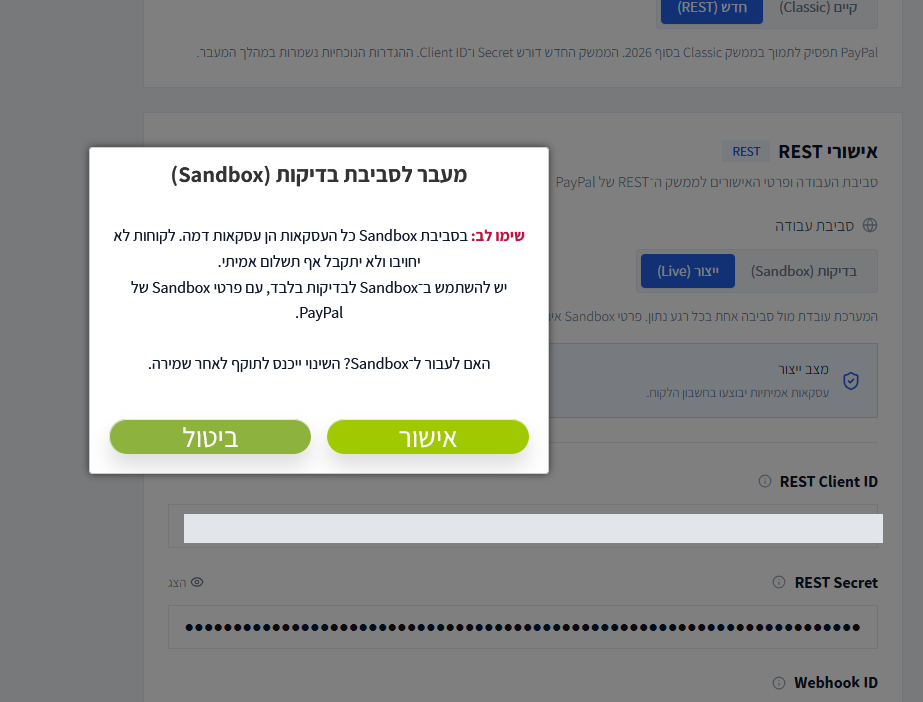
The screenshots show the Hebrew interface.
Step 2: Create the keys at PayPal
- Log in to your PayPal account and open the PayPal Developer icon (
</>). - Under Apps & Credentials, select Create App.
- Copy the Client ID and the Secret.
Each environment has its own app and keys. Open the tab that matches the environment you selected in Step 1: Live for Live, Sandbox for Sandbox. Keys from one environment do not work in the other.
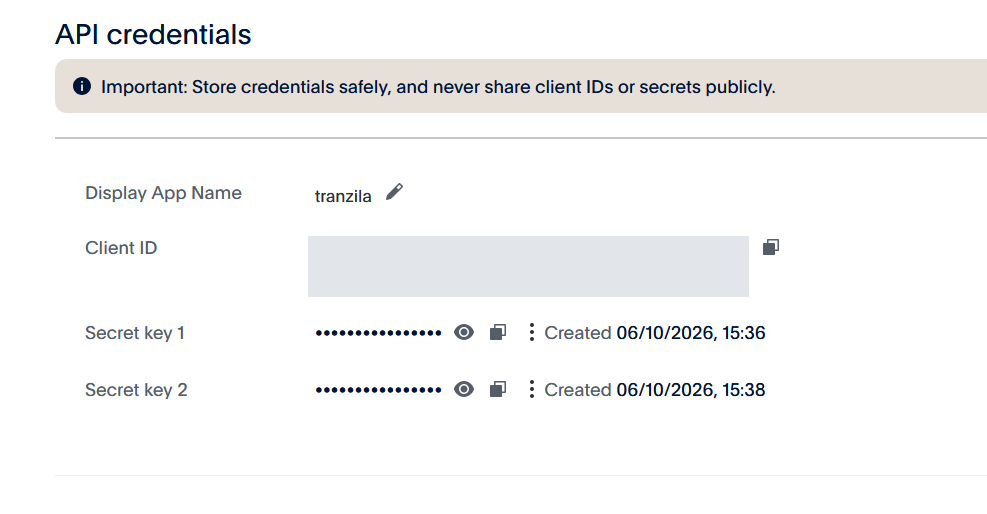
PayPal guides:
Step 3: Enter the keys and save
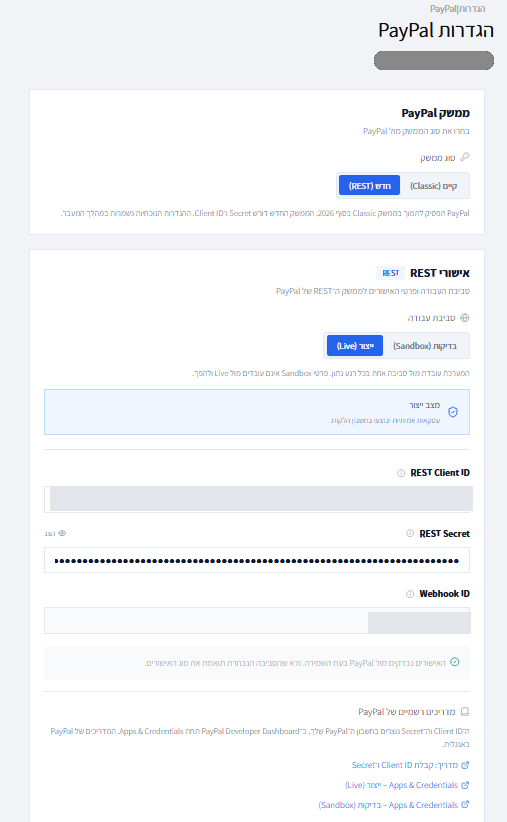
In Settings → Terminal → PayPal, paste the REST Client ID and the REST Secret, and select Save.
Make sure the keys are copied in full, with no spaces at the start or end.
On save, Tranzila checks the keys with PayPal and registers the PayPal webhook for you.
Step 4: Check the Webhook ID
After a successful save, the Webhook ID appears in a read-only field below the Secret. Tranzila registers the webhook itself; you do not create or edit it at PayPal.
If the field stays empty after a successful save, contact support.
If saving fails
| Situation | Message in My Tranzila | Saved? |
|---|---|---|
| Wrong keys, or keys from the wrong environment | PayPal rejected the details. Check the Client ID, the Secret, and that they match the selected environment. | No |
| Webhook registration failed | The webhook subscription could not be registered with PayPal, so the settings were not saved. | No |
| PayPal unavailable for verification | The settings were saved, but the details could not be verified with PayPal now. | Yes, with a warning |
| Client ID or Secret empty | Enter the Client ID and Secret for the new interface. | No |
Wrong keys and keys from the wrong environment return the same message. To tell them apart, check which environment is selected in the settings and which PayPal tab the keys were copied from.
Show PayPal on the payment page
Send the parameter ppnewwin with the value 2 together with the other iframe fields. It adds the PayPal payment option to the payment page.
| Parameter | Value | Description |
|---|---|---|
ppnewwin | 2 | Add the option to pay with PayPal. |
Use the iframe URL of your terminal. Replace terminalname with your terminal name:
https://directng.tranzila.com/terminalname/iframenew.php
Send the parameters with POST, from your server, as described in Iframe Integration. All iframe parameters, such as sum, currency, success_url_address, fail_url_address and notify_url_address, are listed in the iframe parameters table.
<form action="https://directng.tranzila.com/terminalname/iframenew.php"
      target="tranzila" method="POST">
    <input type="hidden" name="sum" value="5" />
    <input type="hidden" name="currency" value="1" />
    <input type="hidden" name="ppnewwin" value="2" />
    <button type="submit">Pay Now</button>
</form>

<iframe name="tranzila" style="width: 100%; height: 800px;"></iframe>
PayPal payments support the currencies listed in Supported currencies.
Moving from Classic to REST
New terminals, and terminals with no previous PayPal settings, see only the REST settings. No move is needed.
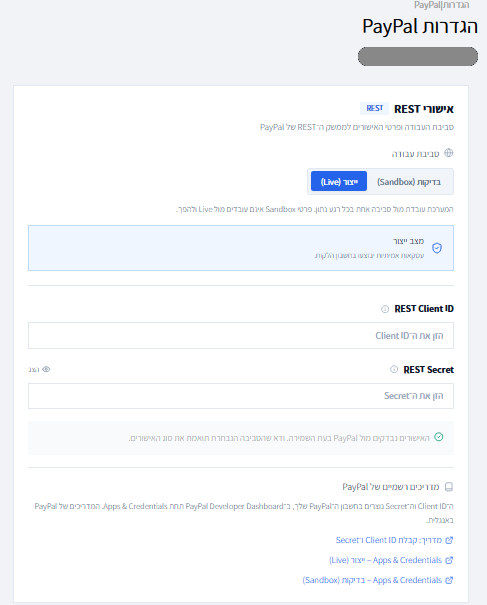
Existing Classic terminals see an interface type selector at the top of the PayPal settings screen. Select New (REST), enter the keys as described in Connect your terminal to PayPal, and save.
On login to My Tranzila, a PayPal Classic is ending notice lists the terminals that still work with Classic. The Switch to the new PayPal button opens the new interface directly. Select Don't show this message again for a week to hide the notice for the coming week.
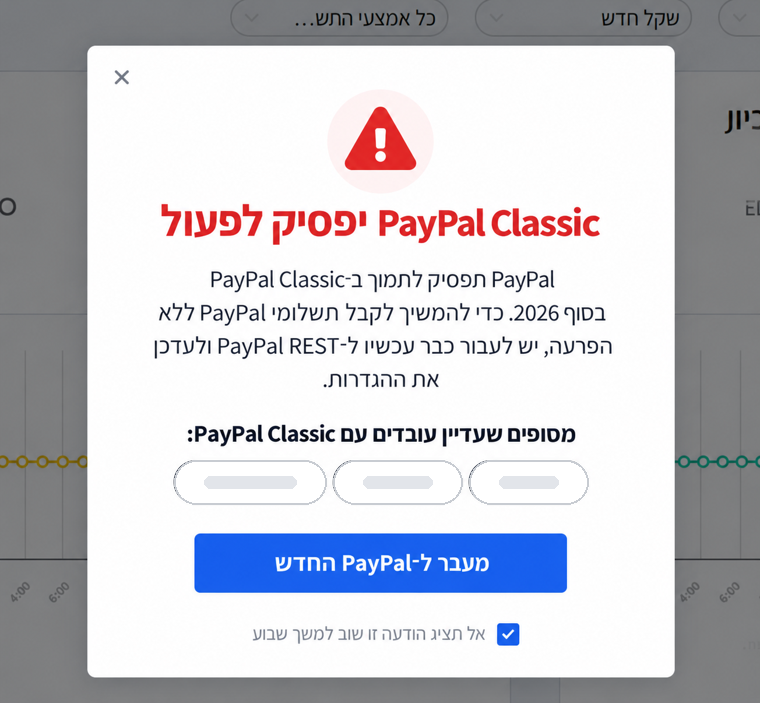
- From the moment you save the REST settings, REST is the working method of the terminal. Every PayPal request, from Tranzila and from PayPal, is handled through REST.
- The move is reversible. Selecting Classic again turns off the REST settings and keeps the keys.
- Existing Classic transactions remain as they are.
Sandbox and Live
| Sandbox | Live | |
|---|---|---|
| Transactions | Simulated. No charge, no money. | Real. The buyer is charged and the money is received. |
| Keys | From a separate Sandbox app. | From a Live app (Live tab). |
| Requires | A Sandbox buyer account. | A PayPal Business account. |
| Switching | Confirmed in a warning window. Takes effect after save. | Default. |
To move from Sandbox to Live:
- Create a Live app at PayPal.
- In Settings → Terminal → PayPal, select Live, enter the Live Client ID and Secret, and save.
On every save, Tranzila registers a webhook in the selected environment and the Webhook ID in the settings is replaced with the new one. The previous Sandbox webhook stays at PayPal and does not need to be deleted.
!> Switching the selector to Live is not enough. Enter the keys of the Live app as well.
Transaction types
In the payment page, the transaction type is set with the tranmode parameter, as described in the iframe parameters table. In My Tranzila, a PayPal transaction can be one of these types:
| Transaction type | What it does |
|---|---|
| Charge (חיוב) | Standard charge. |
| Verify (אימות) | Holds the amount without collecting it. PayPal keeps the authorization for up to 30 days. |
| Force (אילוץ) | Collects from an existing authorization, with the Charge button on the Verify transaction. You can collect part of the amount, and more than once. The collection screen has an Amount field (empty = the full amount) and a Final collection checkbox that releases the remaining balance. |
| Cancel (ביטול) | There is no cancel action in My Tranzila. An authorization is recorded as cancelled only when PayPal reports it: you cancelled it in your PayPal account, or 30 days passed. |
| Refund (זיכוי) | Full or partial refund of a charge, from My Tranzila. You cannot refund more than the remaining refundable amount. |
PayPal uses its own names: a Verify appears at PayPal as an authorization (not yet captured), and a Force appears as a charge.
To cancel an authorization, cancel it in your PayPal account. A new Verify can be created after a cancellation.
Read a transaction
In the Transaction details screen, the PayPal area next to the payment method shows:
- PayPal transaction ID
- PayPal order ID
- PayPal invoice ID, built as
<terminal>_<transaction number> - PayPal payer ID
- On a Charge transaction: the PayPal fee and the net amount received
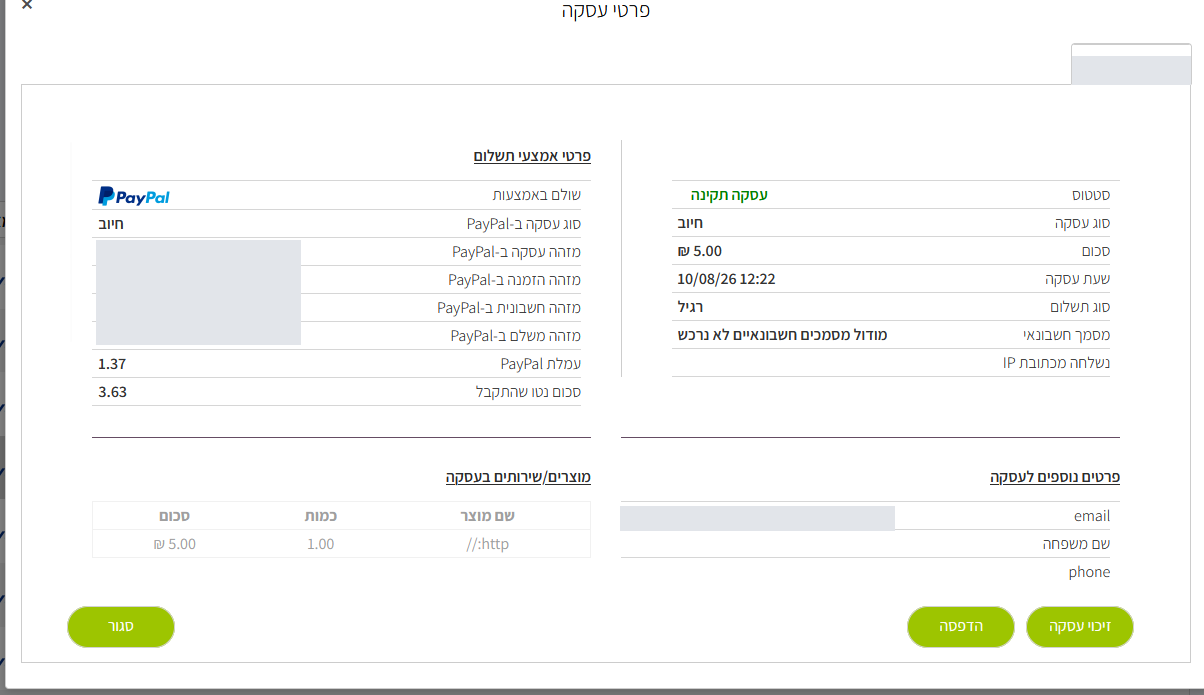
Linked transactions. A Verify transaction shows a Related PayPal transactions row with every transaction created from the authorization. A Force transaction shows the same list with the current transaction highlighted, so you can move between them and follow the transaction back to its source.
A refund or a chargeback made directly in your PayPal account is recorded in Tranzila automatically, as a new linked transaction.
Pending payments
A transaction with status P (pending) is a payment that PayPal holds, for example in a currency your PayPal account does not hold, until you approve it in PayPal. Do not ship goods until the payment is completed. When it completes, a linked Charge row is added and a notification is sent to your server.
Parameters returned after a PayPal transaction
After a PayPal transaction, the following parameters are returned in addition to the standard iframe response parameters, which are described in Receiving the Response. As with all iframe response data, they are returned by POST or GET to your success or failure URL, and to your Notify page, if one is configured.
| Parameter | Description |
|---|---|
invoice_id | The invoice ID sent to PayPal. By default <terminal>_<transaction index>. |
paypal_order_id | PayPal order ID. |
paypal_transaction_id | PayPal capture ID (the authorization ID for a Verify). |
paypal_status | PayPal's status, for example COMPLETED. |
paypal_intent | CAPTURE for a charge, AUTHORIZE for a Verify. |
paypal_payer_id | The buyer's PayPal account ID. |
paypal_capture_time | Capture time from PayPal, in UTC (ISO 8601). |
paypal_final_capture | Final-capture indicator from PayPal's capture. |
paypal_gross_amount, paypal_fee, paypal_net_amount | PayPal's fee breakdown, when PayPal returns it. |
paypal_error, paypal_debug_id | Empty when the payment succeeds. |
pp_payer_email | The buyer's email at PayPal. |
pp_first_name, pp_last_name | The buyer's first and last name at PayPal. |
pp_address_name | The name on the PayPal shipping address. |
pp_address_street, pp_address_city, pp_address_state, pp_address_zip, pp_address_country_code | The PayPal shipping address. |
pp_address_country, pp_payer_status | Always empty. They stay in the response so that your field list does not change. |
Buyer details (pp_*) are empty when PayPal did not send them.
Example of the PayPal parameters in a response:
[invoice_id] => yourterminal_108106
[paypal_order_id] => 5O190127TN364715T
[paypal_transaction_id] => 3C679366HH908993F
[paypal_status] => COMPLETED
[paypal_intent] => CAPTURE
[paypal_payer_id] => QYR5Z8XDVJNXQ
[paypal_capture_time] => 2026-10-14T08:33:24Z
[paypal_final_capture] => 1
[paypal_gross_amount] => 5.00
[paypal_fee] => 1.37
[paypal_net_amount] => 3.63
[paypal_error] =>
[paypal_debug_id] =>
[pp_payer_email] => buyer@example.com
[pp_first_name] => Dana
[pp_last_name] => Levi
[pp_address_name] => Dana Levi
[pp_address_street] => 1 Example St
[pp_address_city] => Tel Aviv
[pp_address_state] =>
[pp_address_zip] => 6100000
[pp_address_country_code] => IL
[pp_address_country] =>
[pp_payer_status] =>
PayPal buyer details in the transaction record
If you do not send a field to the iframe, such as contact, the value received from PayPal is stored in the transaction record in My Tranzila. A parameter that you send to the iframe in advance always takes priority.
| PayPal | Tranzila field |
|---|---|
| Buyer email | email |
| Buyer first and last name | contact (company when the PayPal shipping address has a name) |
| Name on the PayPal shipping address | contact |
| Shipping address lines | address |
| Shipping city | city |
| Shipping postal code | zip |
- A field is filled only when it exists in the terminal and was not sent to the iframe.
- If the terminal defines a matching
pp_*additional field, for examplepp_payer_email, the PayPal value is stored there instead of in the standard field. - The buyer's country is not stored in a standard field.
Supported currencies
PayPal payments through the payment page support the currencies of the iframe currency parameter:
currency | Currency |
|---|---|
1 | ILS (NIS) |
2 | USD |
978 | EUR |
826 | GBP |
Troubleshooting
| Issue | What to check | What to do |
|---|---|---|
| Settings do not save | The message in My Tranzila (see If saving fails); the keys are copied in full with no spaces; the keys match the selected environment. | If everything is correct, contact support. |
| The PayPal option does not appear on the payment page | That ppnewwin=2 is sent with the other iframe fields, and that the iframe URL is https://directng.tranzila.com/terminalname/iframenew.php. | See Show PayPal on the payment page. |
| Buyers are not charged | Whether the terminal is in Sandbox mode. | Switch to Live as described in Sandbox and Live. |
| Webhook ID is empty | That the save succeeded and the right terminal is selected. | If the field is empty after a successful save, contact support. |
| Payment failed after the buyer approved it | The buyer is not charged. The failure reason from PayPal is shown in the transaction details. A common reason is a duplicate invoice ID: the same PayPal account is used by another system that sends the same invoice ID. | If the reason is not shown, contact support with the transaction number. |
| A transaction is pending (status P) | PayPal holds the payment until you approve it at PayPal. | Do not ship until the payment is completed. |
| An authorization shows as cancelled | You cancelled it in PayPal, or 30 days passed. | Create a new Verify. |
| A currency is not supported | The currency value is one of the values in Supported currencies. | Use a supported currency. |
| You want to return to Classic | The interface type selector in the PayPal settings. | The selector returns the terminal to Classic. PayPal ends support for Classic at the end of 2026. |
Contact support
When you contact support, include:
- Terminal name and environment (Sandbox or Live).
- Transaction number, if there is one, and the time of the action.
- A screenshot of the message or of the transaction details.
- What you already checked from the troubleshooting table.
| Channel | Details |
|---|---|
| support@interspace.net | |
| 073-2224488 | |
| Phone | 073-2224444, extension 1 |